
Which orders haven’t I bought yet?
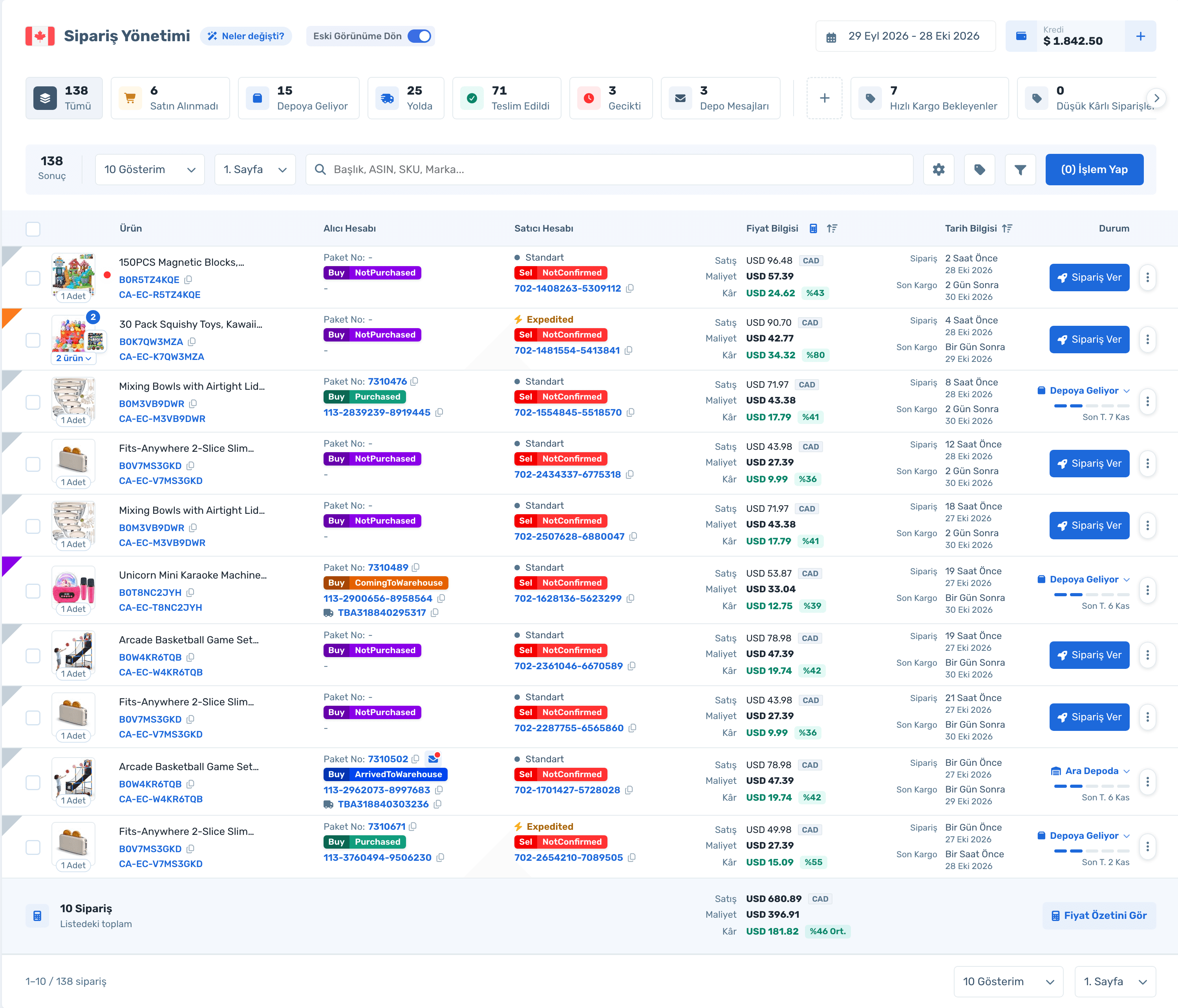
Click the "Not Purchased" card; a "Place Order" button appears on each row.
Not purchased, on the way to the warehouse, in transit, delivered, late: orders are counted on status cards. Each row shows the buyer-side purchase, the seller-side sale, price, profit and shipping stage side by side.
50% off your first month, code: MERHABA
Data in the screens is sample store data.
Which orders haven’t I bought yet?
Click the "Not Purchased" card; a "Place Order" button appears on each row.
Are any orders late?
The "Late" card separates orders past the ship-by date; the row shows how many days late.
How much did I make on this order?
Sale, cost and profit with percentage on every row; the page footer shows the list total and a price summary.
Where is the parcel now?
The stage badge (To warehouse, At warehouse, Left warehouse, In transit, Delivered) and a 5-step progress bar sit on the row.
Sign up and connect your store; orders come in automatically. Already a member? Log in and open Orders › Order Management.
All, Not Purchased, To Warehouse, In Transit, Delivered, Late and Warehouse Messages. Turn your own filter into a card with "Add Card", such as expedited orders or low-margin ones.

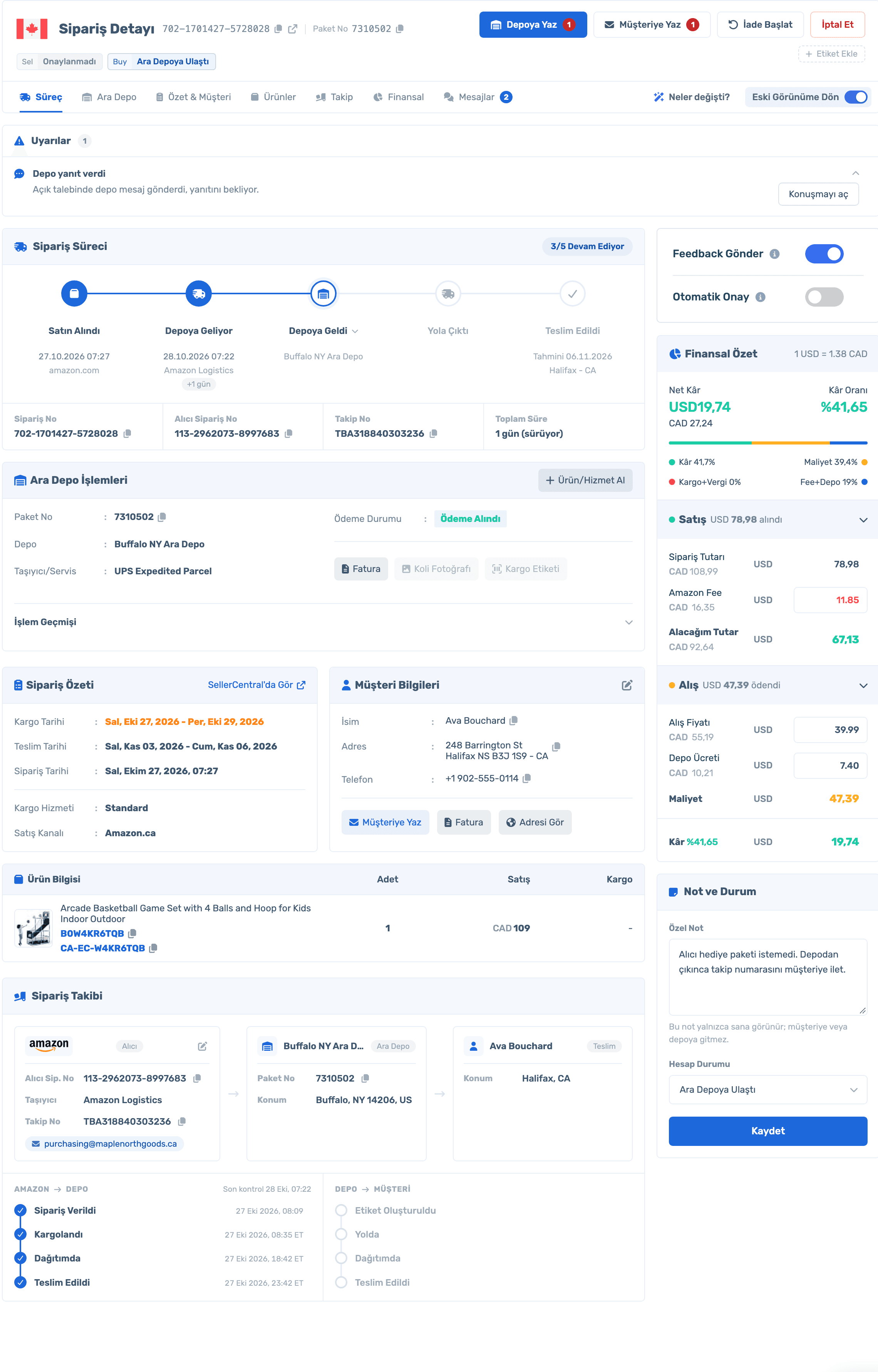
Purchased, to warehouse, at warehouse, shipped, delivered: the order process step by step. Warehouse actions, customer info, product, tracking and a financial summary on the same page.
Sign up and connect your store; orders come in automatically. Already a member? Log in and open Orders › Order Management.
Place a pending order from its row, or order the selected ones in bulk.
Ask the warehouse, request delivery info, take a return, ask for feedback: all in the stage menu.
Select all results, assign tags, export to Excel, check costs and tracking IDs.
Switch back to the classic order list with "Back to Classic View"; your choice is remembered.
Status cards, shipping stage, profit and bulk actions on one screen.
50% off your first month, code: MERHABA
Used EasyCentral before? 30% off to welcome you back: GERIDON