
How do I spot a problem order?
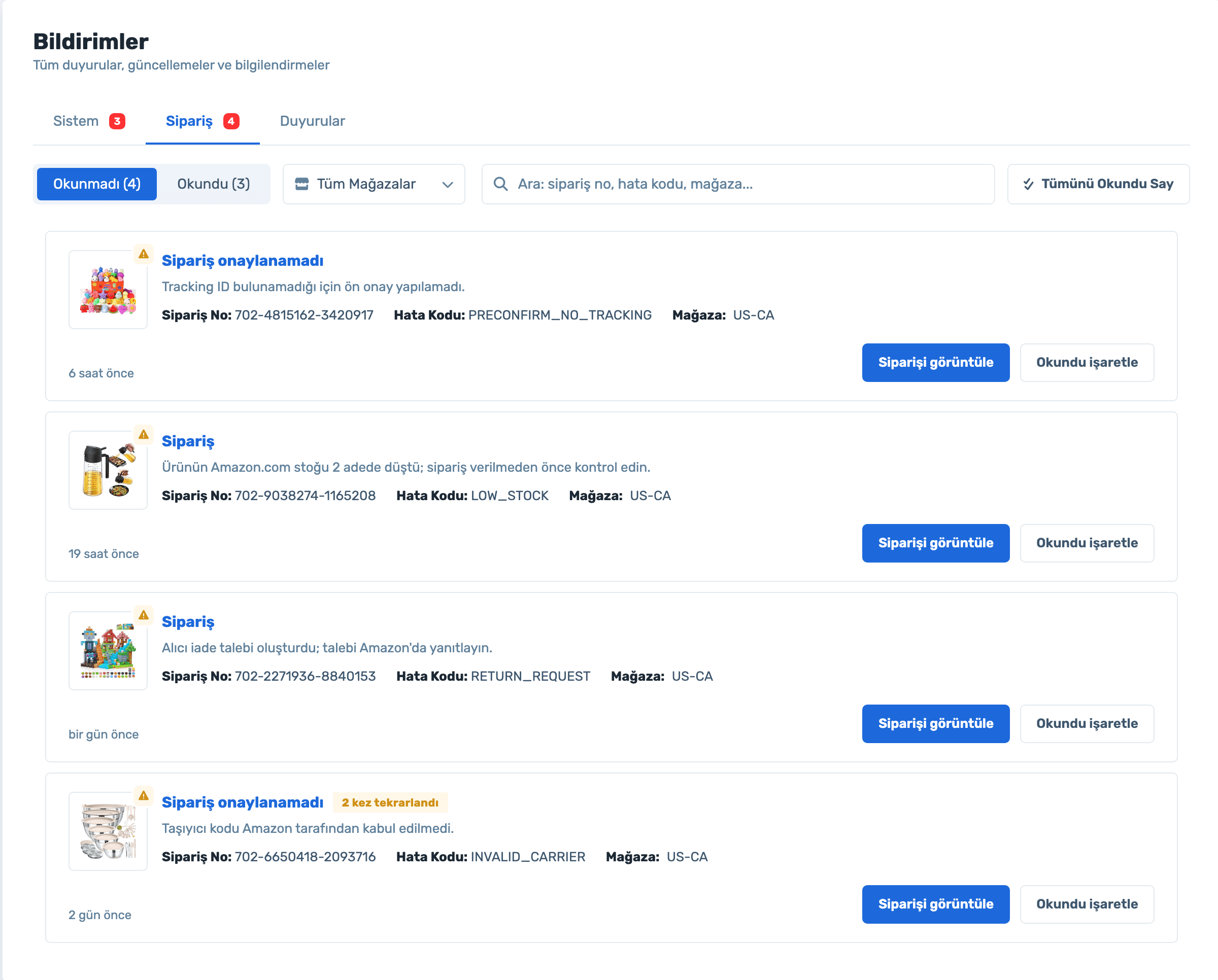
The Orders tab shows the order number, error code and how many times it repeated; one click opens the order.
Orders that couldn’t be pre-confirmed, dropping stock, parcels waiting at customs and new features in one notification center. Choose how you hear about each.
50% off your first month, code: MERHABA
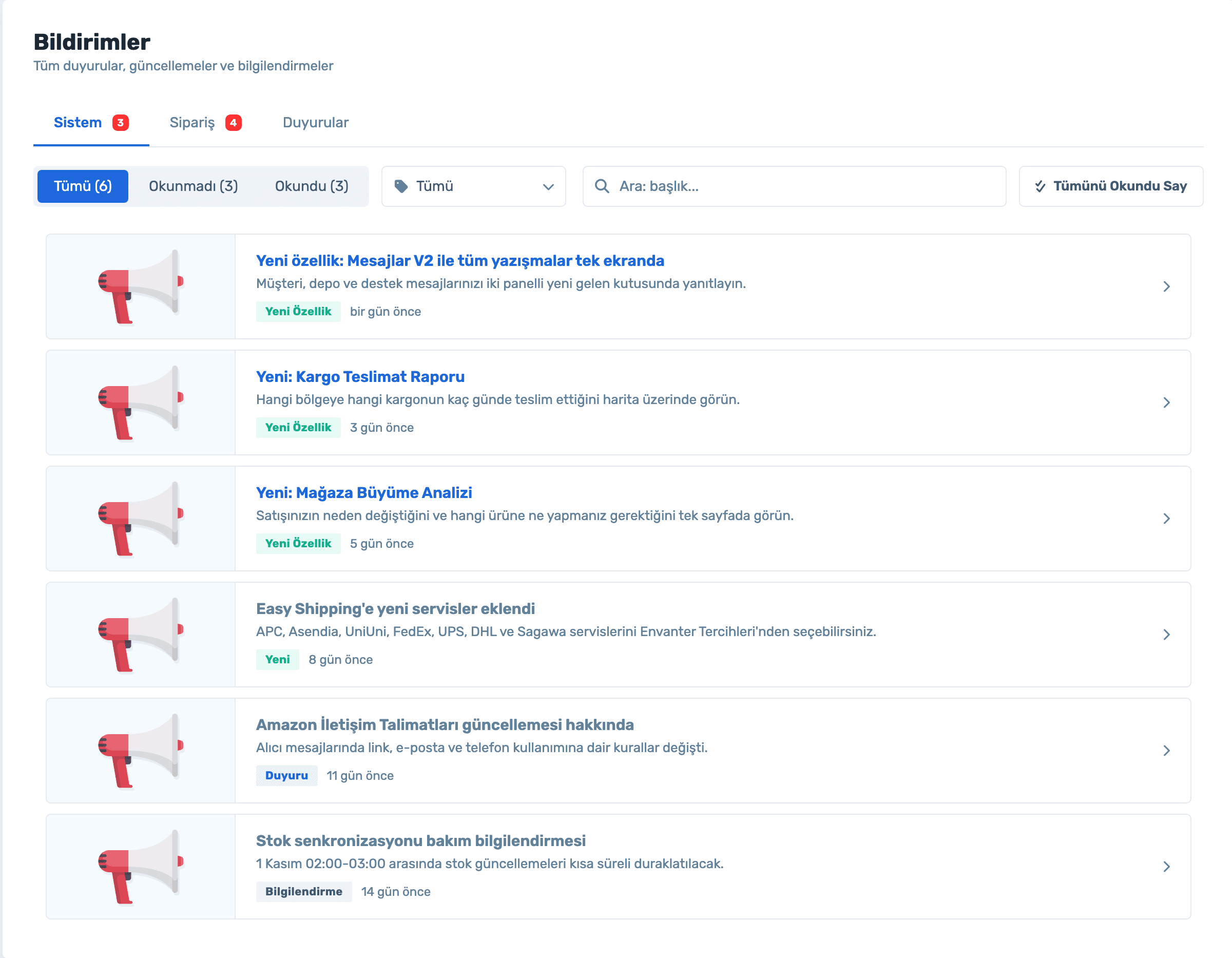
Data in the screens is sample store data.
How do I spot a problem order?
The Orders tab shows the order number, error code and how many times it repeated; one click opens the order.
Can I get alerts outside the panel?
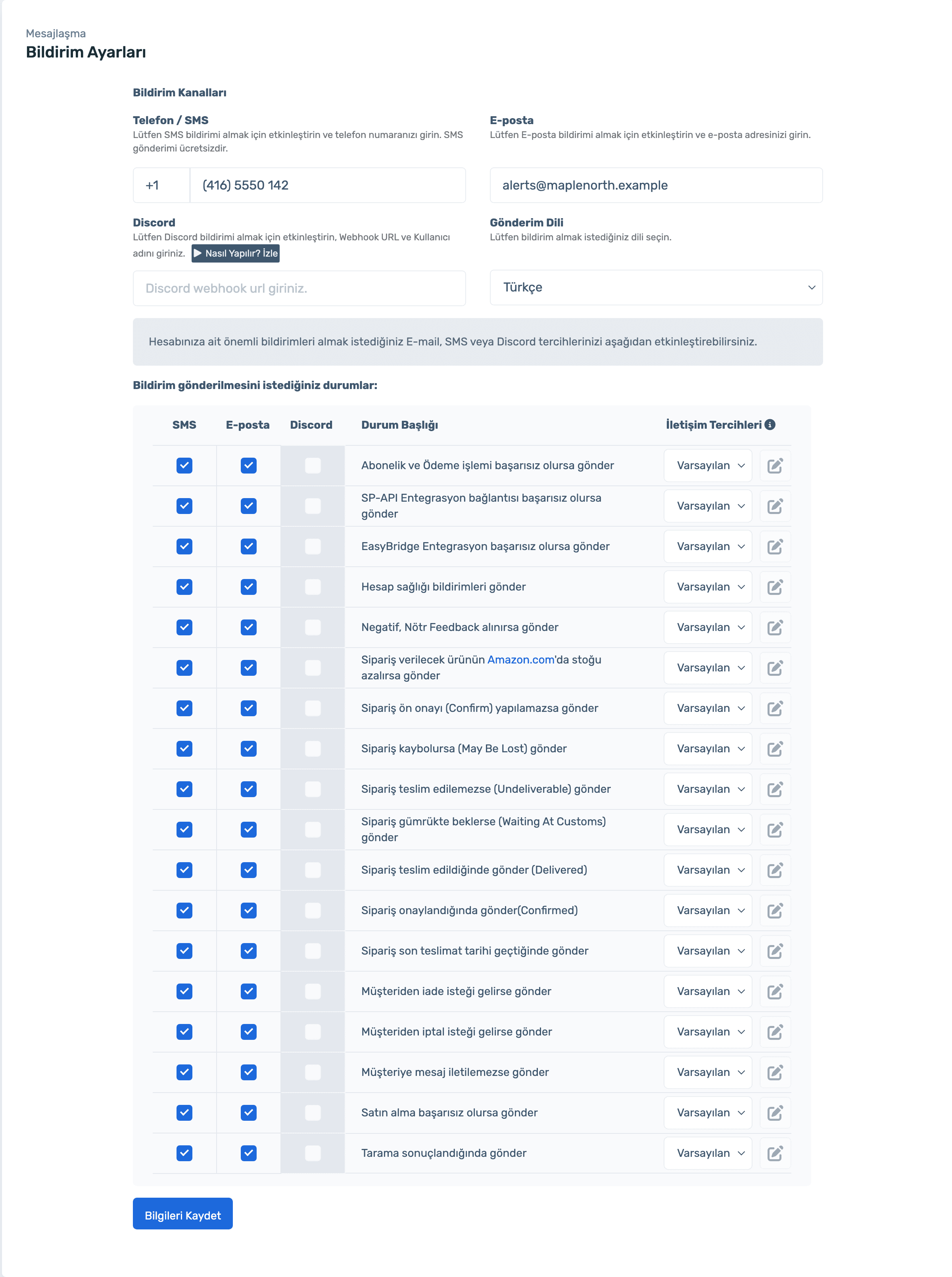
Yes. Turn on email, SMS or Discord separately for each notification type.
How do I hear about new features?
The System and Announcements tabs tag new features, important notices and updates.
Sign up, connect your store and choose your channels. Already a member? Log in and open Notifications.
Orders that failed pre-confirmation, had a carrier code rejected or wait at customs are listed by store. Filter unread ones or mark all as read.
Sign up, connect your store and choose your channels. Already a member? Log in and open Notifications.
In Messaging › Notification Settings, enter your phone, email and Discord webhook once and pick the language. Then turn SMS, email and Discord on or off separately for every event, from payment errors to scan results.
Sign up, connect your store and choose your channels. Already a member? Log in and open Notifications.
Pre-confirmation, Delivered, Confirmed, May Be Lost, Undeliverable, customs and ship-by date.
Negative and neutral feedback, return and cancellation requests, undelivered messages, account health.
Payments, SP-API and EasyBridge connection, scan results and dropping Amazon.com stock.
Pick the channel per notification type: urgent ones to SMS, follow-ups to email, team updates to Discord.
One notification center, store filter and email, SMS, Discord channels.
50% off your first month, code: MERHABA
Used EasyCentral before? 30% off to welcome you back: GERIDON