
How many active and inactive products do I have?
The store status summary is at the top: all, active and inactive. Click a card to filter the list.
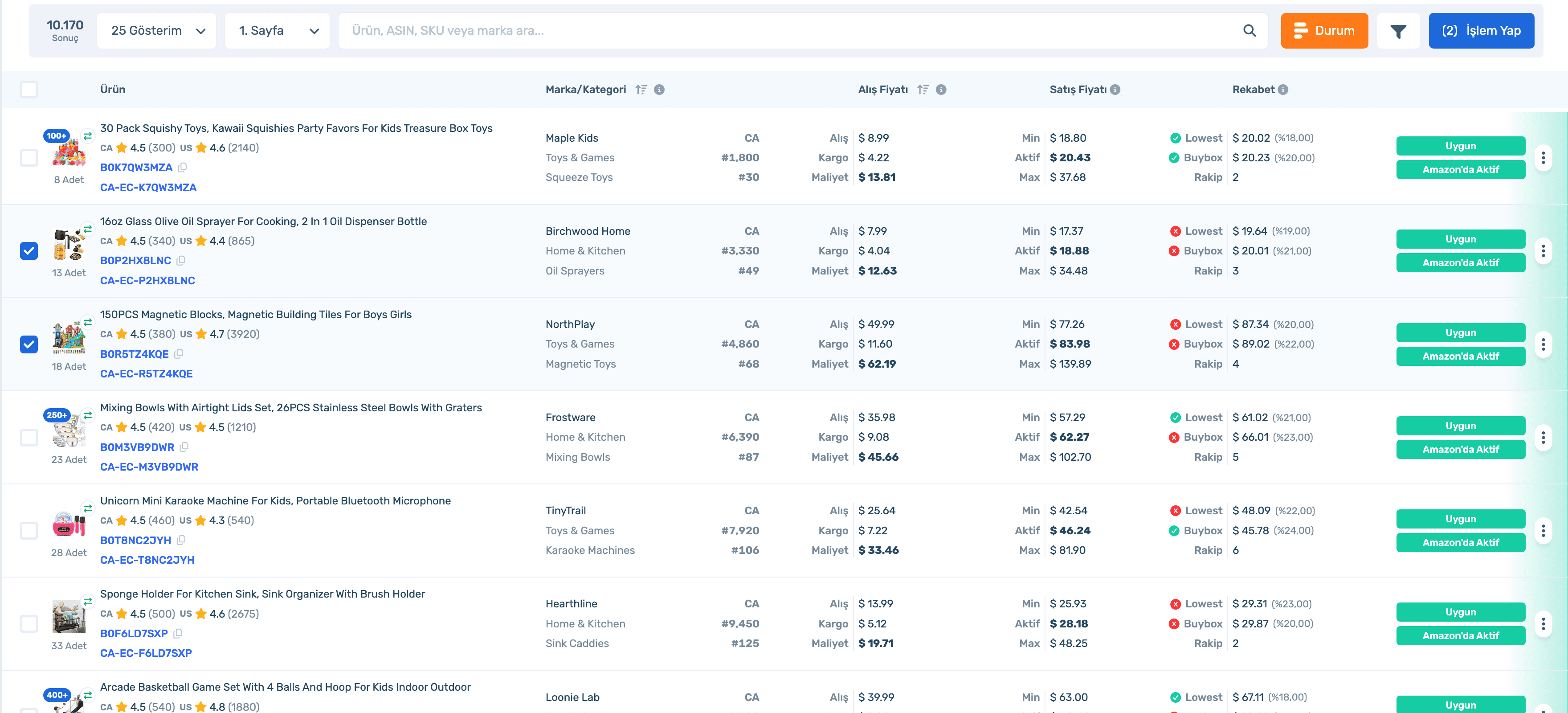
See cost and shipping, min/active/max sale price, Lowest and BuyBox gap and Amazon status for every product on the same row. Find what you need with Custom Filter and manage selections in bulk.
Product Search, Upload Pool, Inactive Products and Inventory are tabs of the same page.
50% off your first month, code: MERHABA
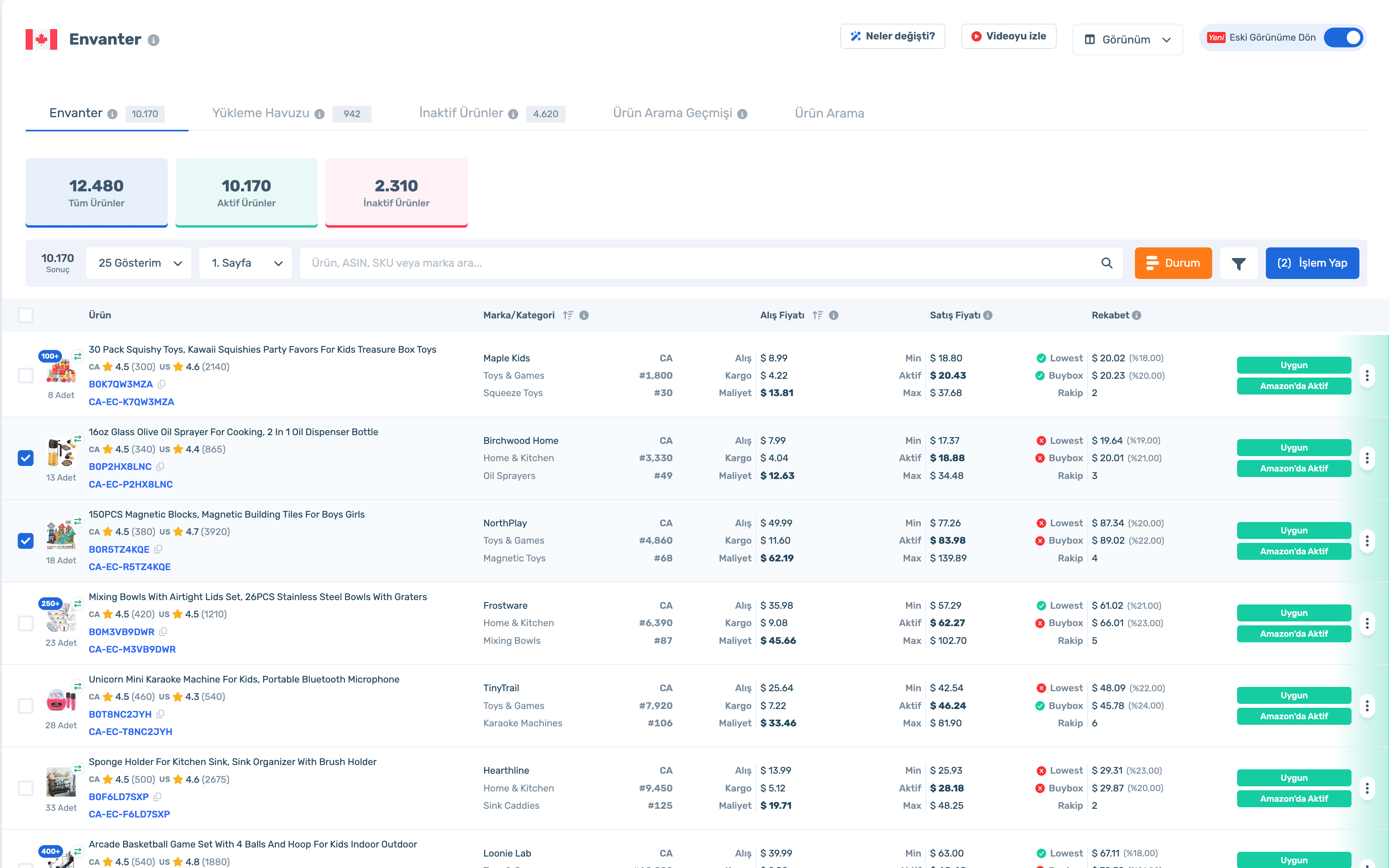
Data in the screens is sample store data.
How many active and inactive products do I have?
The store status summary is at the top: all, active and inactive. Click a card to filter the list.
How do I find low-margin products?
Turn on the Profit column and filter by profit gap to the BuyBox and Lowest seller in Custom Filter.
Where is the filter I need?
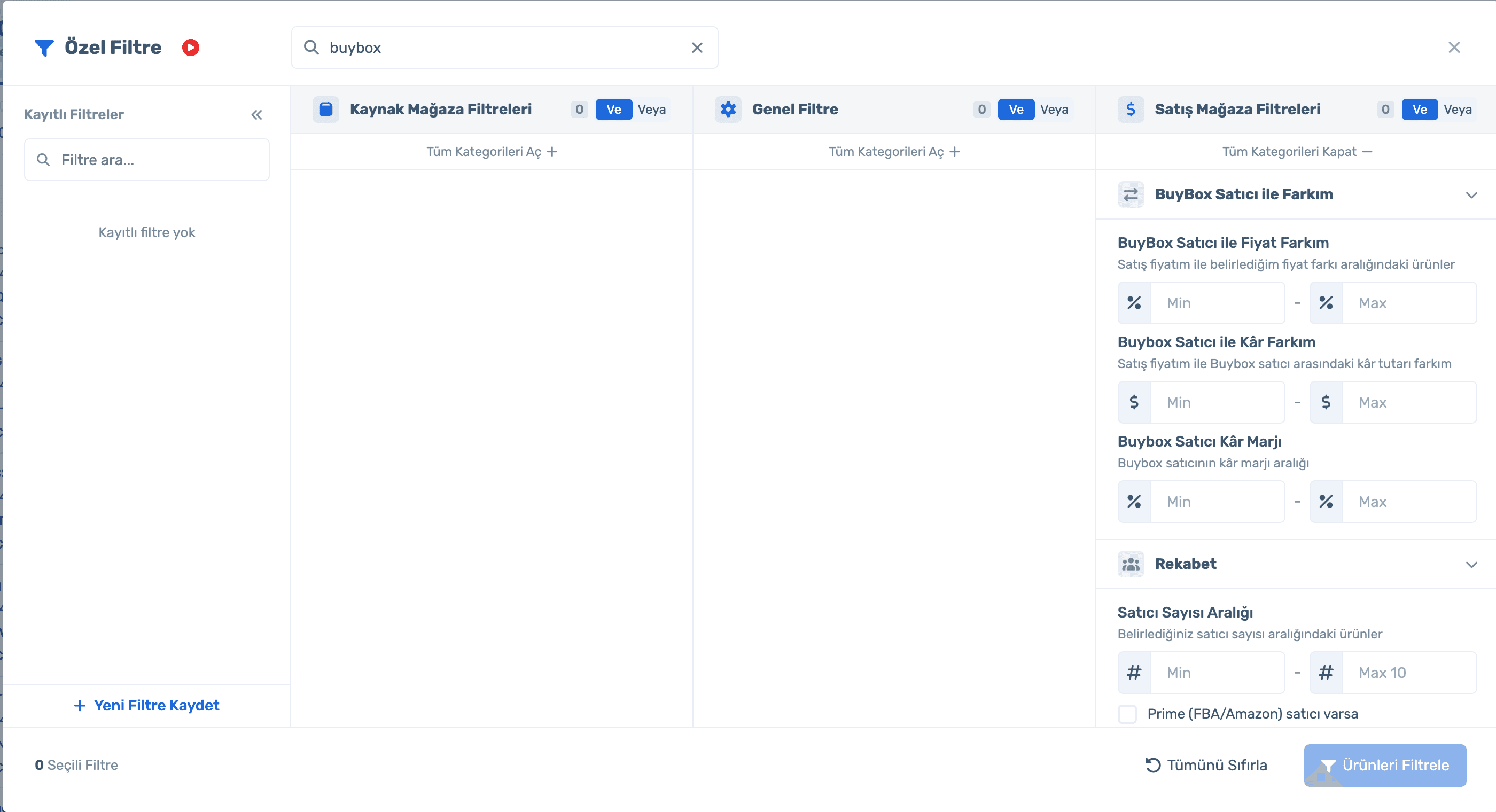
Type a word like "buybox", "banned" or "price" into Custom Filter’s search box; matching filters open right away.
Can I act in bulk?
Select products or all results; remove from inventory, download ASINs or set a custom margin.
Sign up and connect your store; your products come in automatically. Already a member? Log in and open Inventory Management.
Cost, shipping and total cost; min, active and max price; Lowest and BuyBox price with your gap; competitor count and Amazon status. All on one row.
Source store, general and sales store filters in one panel. Type what you need; groups like price and cost, BuyBox and Lowest gap, banned lists, promotions and stock status open instantly.
Sign up and connect your store; your products come in automatically. Already a member? Log in and open Inventory Management.
Total, active and inactive counts sit above the list. Click a card to filter the table; reasons for inactive items are in the Inactive Products tab.

50,000 ASINs per scan with source and sales filters.
Restriction Check, approval status, automatic upload.
Dropped products, their source and reason.
We won’t break your habits: switch back to the classic inventory screen with "Back to Classic View"; your choice is remembered.
Sign up and connect your store; your products come in automatically. Already a member? Log in and open Inventory Management.
Product table, Custom Filter and bulk actions on the same page.
50% off your first month, code: MERHABA
Used EasyCentral before? 30% off to welcome you back: GERIDON