
How do I reduce trademark risk?
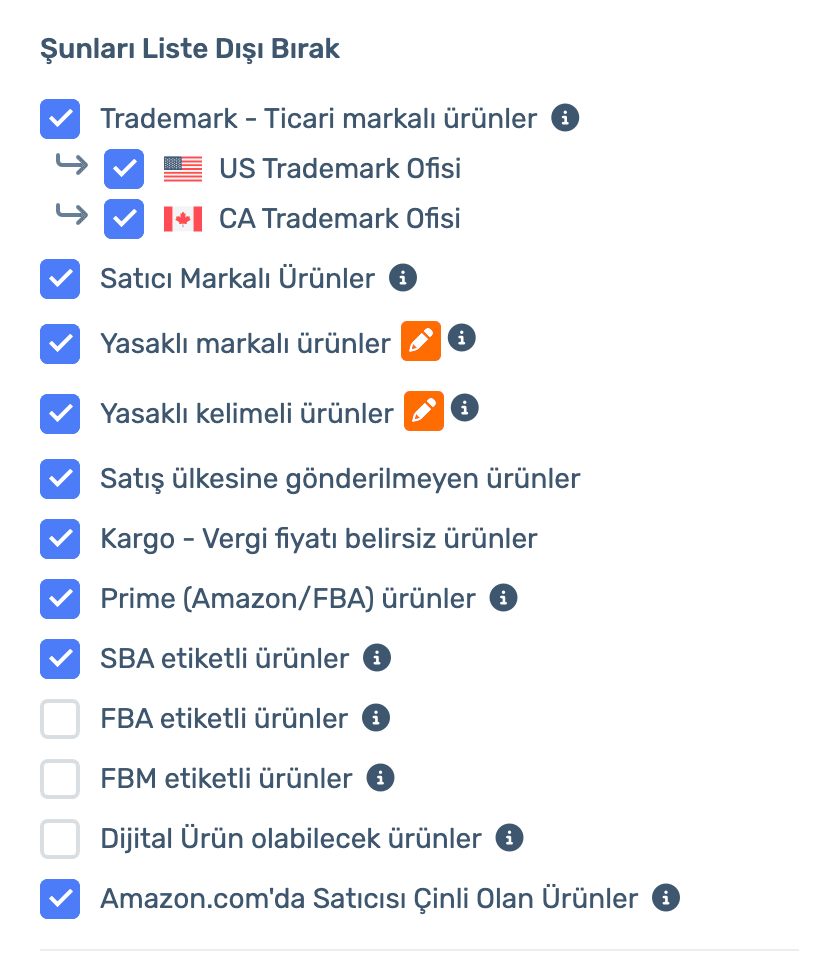
Turn on the Trademark filter and pick the offices to check (e.g. US and CA). Registered-brand products never get listed.
Exclude trademarked and seller-branded products, banned brands and keywords, products not shipped to your country, and listings with Prime or Chinese sellers in one click. Products with Amazon warnings get removed automatically.
Filters apply to new scans and to products already in your inventory.
50% off your first month, code: MERHABA
Data in the screens is sample store data.
How do I reduce trademark risk?
Turn on the Trademark filter and pick the offices to check (e.g. US and CA). Registered-brand products never get listed.
How do I block specific brands and words?
Add them to your brand, product, keyword, category and seller lists; with the banned-brand and banned-keyword filters on, they are dropped.
Can I avoid listings with Prime or Chinese sellers?
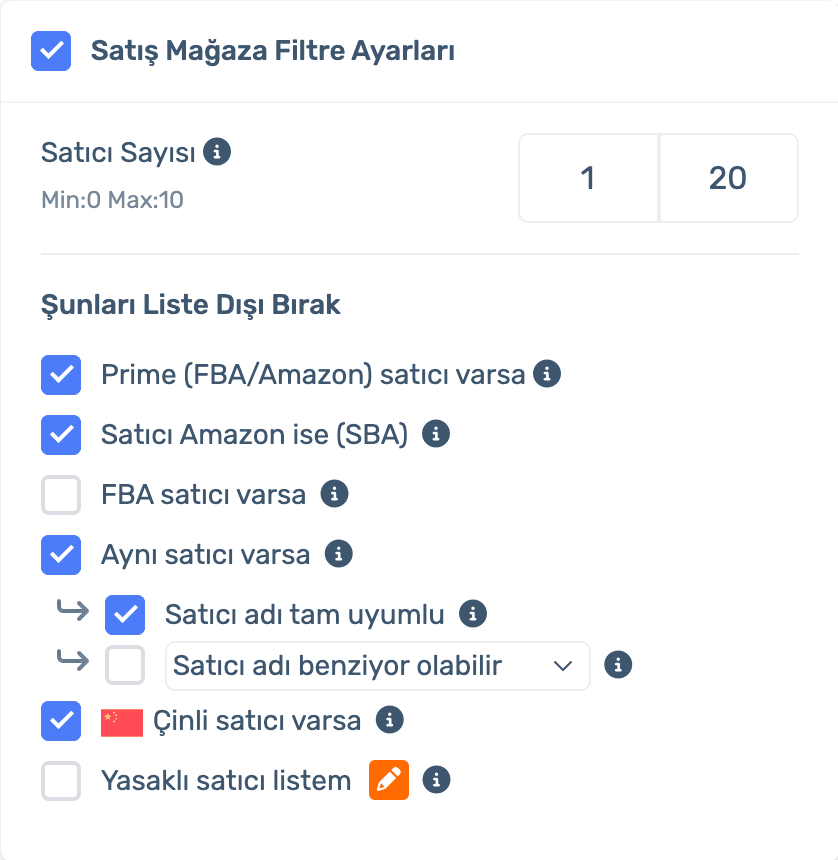
Yes. In sales store filters turn on Prime, SBA, FBA, same seller and Chinese seller options, and set a seller-count range.
Are products with Amazon warnings removed automatically?
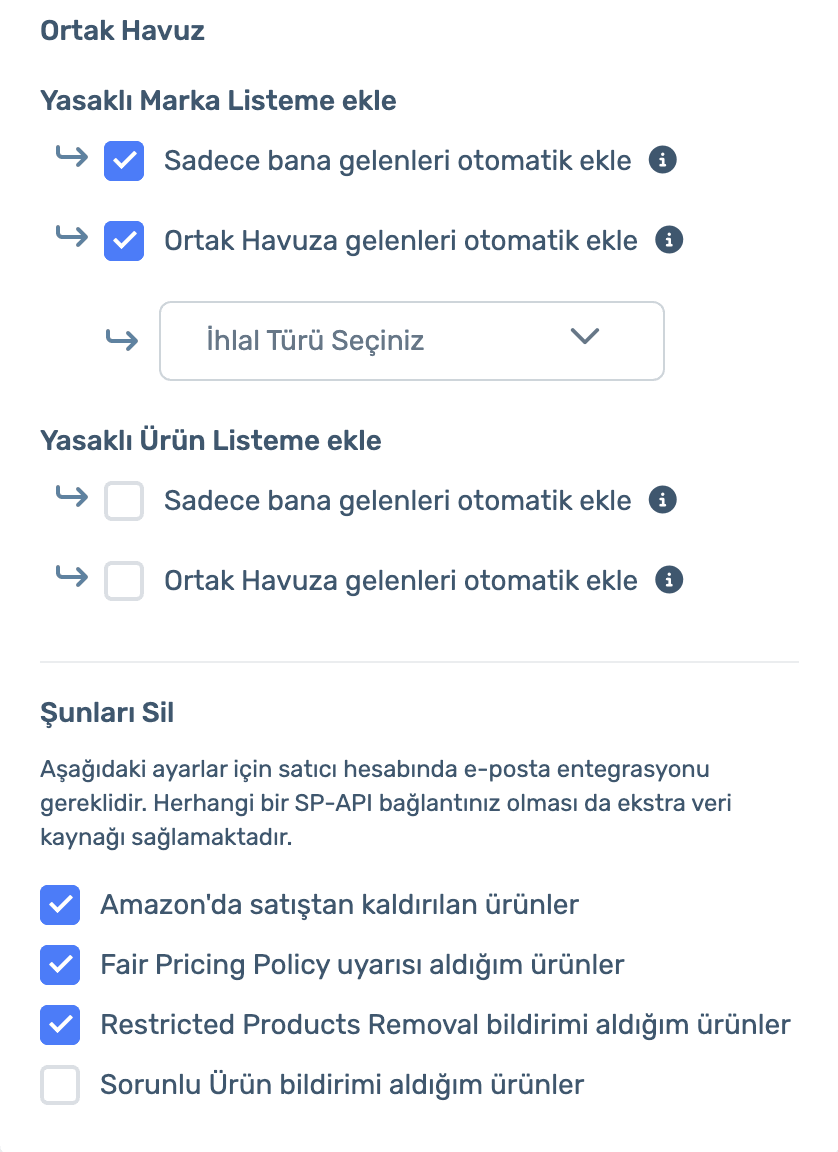
Products removed from sale or flagged under Fair Pricing Policy or Restricted Products Removal can be removed automatically.
Sign up, connect your store and turn on the filters. Already a member? Log in and open Inventory › Update Settings.
Set a seller-count range; drop listings with Prime (FBA/Amazon), Amazon itself (SBA), FBA or the same seller. Filter by seller name similarity and Chinese sellers, and use your banned seller list.
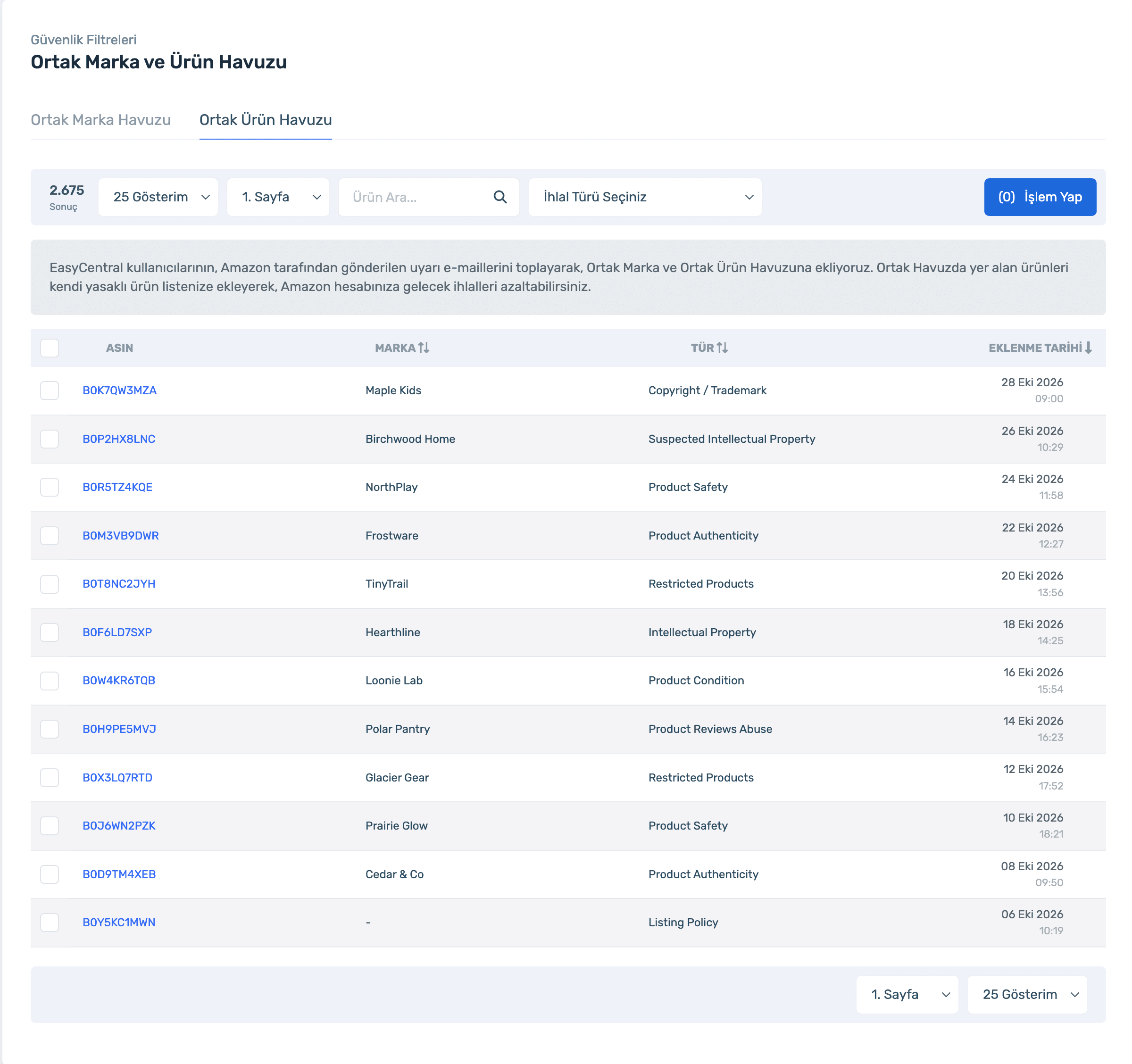
Add violation reports from the Shared Pool to your banned brand and product lists automatically. Remove products that get Amazon warnings by the rules you choose.
Sign up, connect your store and turn on the filters. Already a member? Log in and open Inventory › Update Settings.
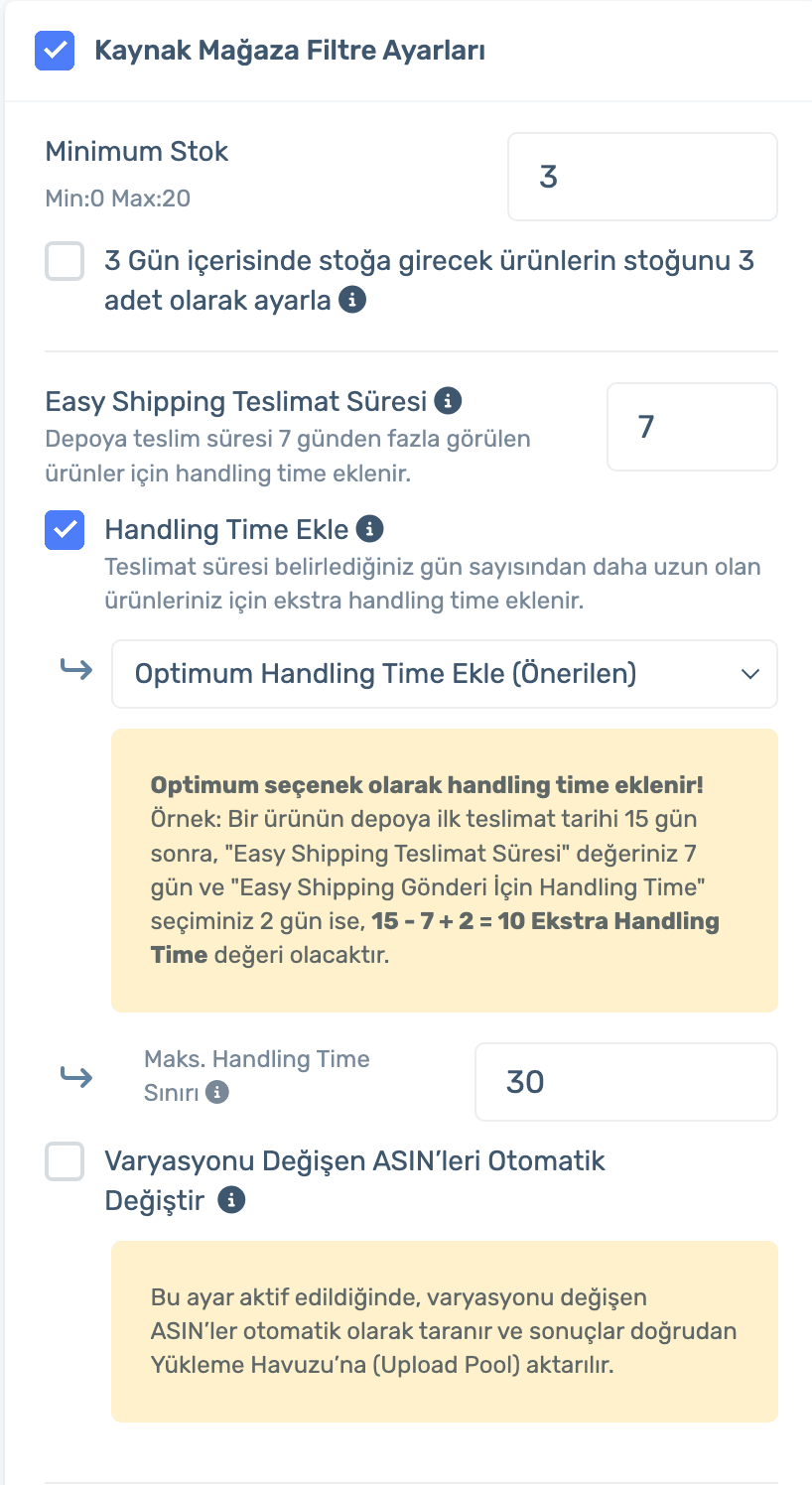
Set minimum stock and the Easy Shipping delivery time at the source. If delivery to the warehouse takes longer, Add Handling Time adds the difference to the product’s handling time; the product stays listed and the delivery date you promise stays realistic.
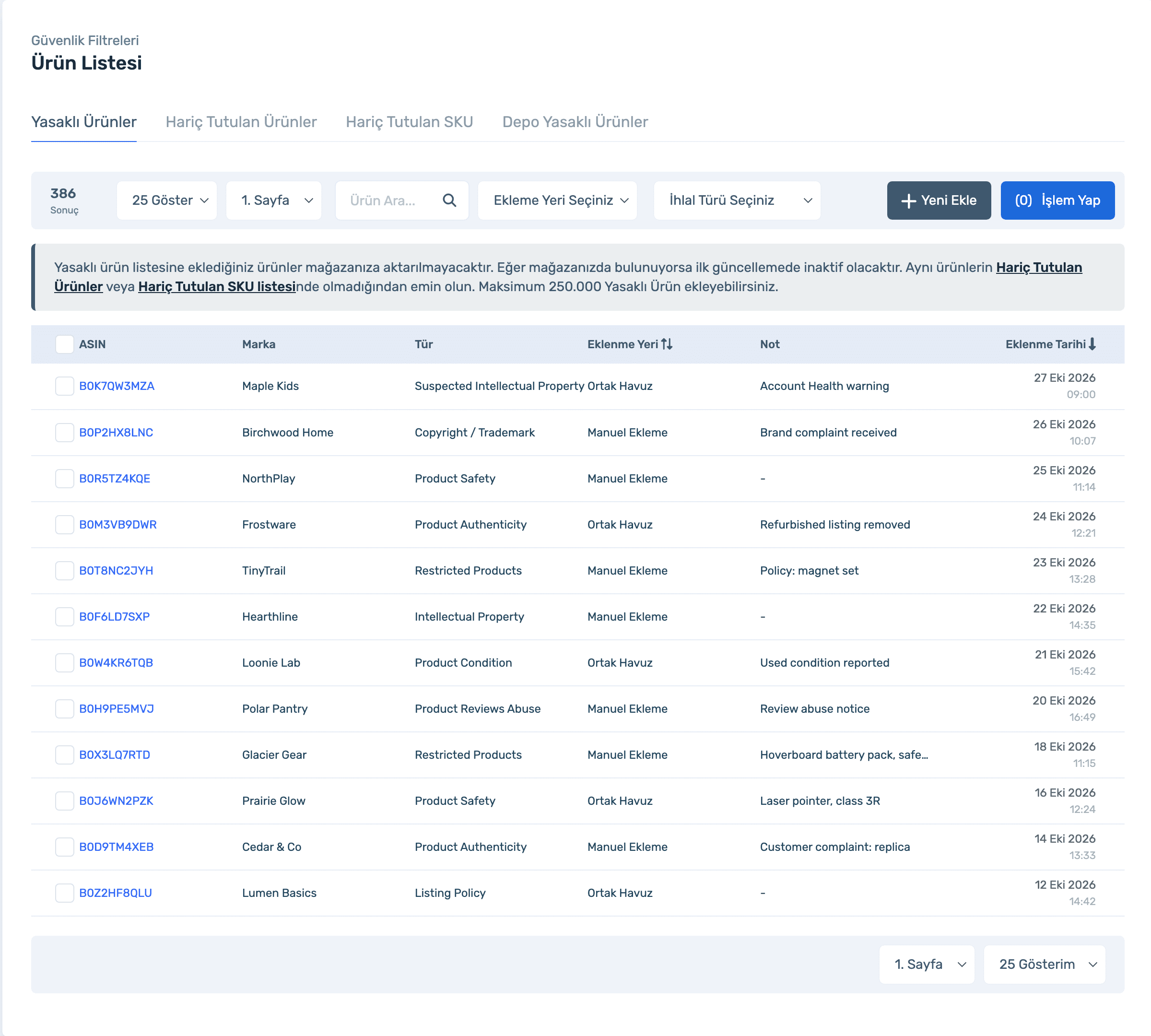
ASINs on your banned product list are never imported; if already in your store they go inactive at the next update. Each entry shows brand, violation type, where it came from (manual or Shared Pool) and a note.
Sign up, connect your store and turn on the filters. Already a member? Log in and open Inventory › Update Settings.
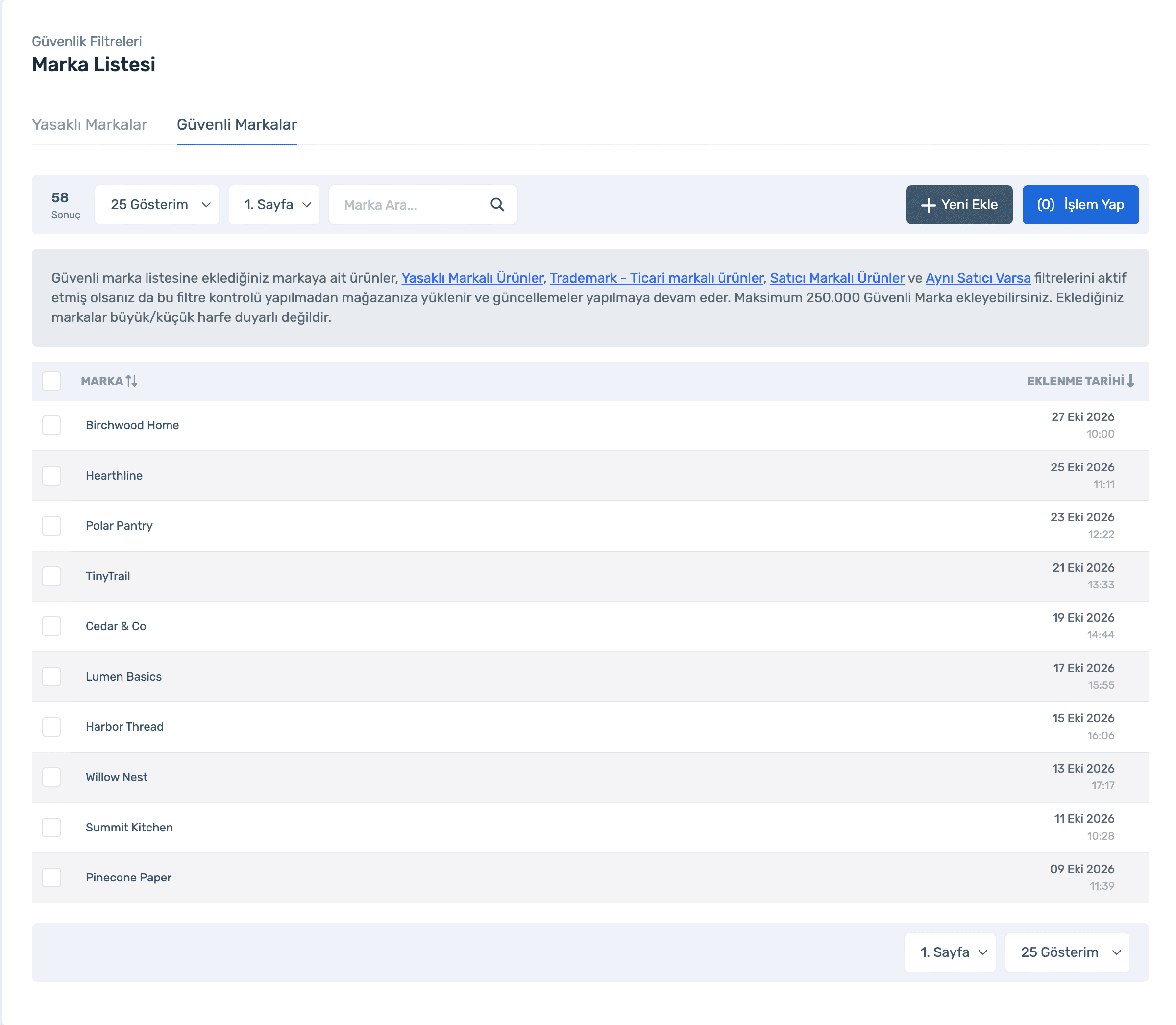
Add risky brands to the banned list so none of their products reach your store. Add brands you are allowed to sell to the safe list so they upload without getting caught by filters.
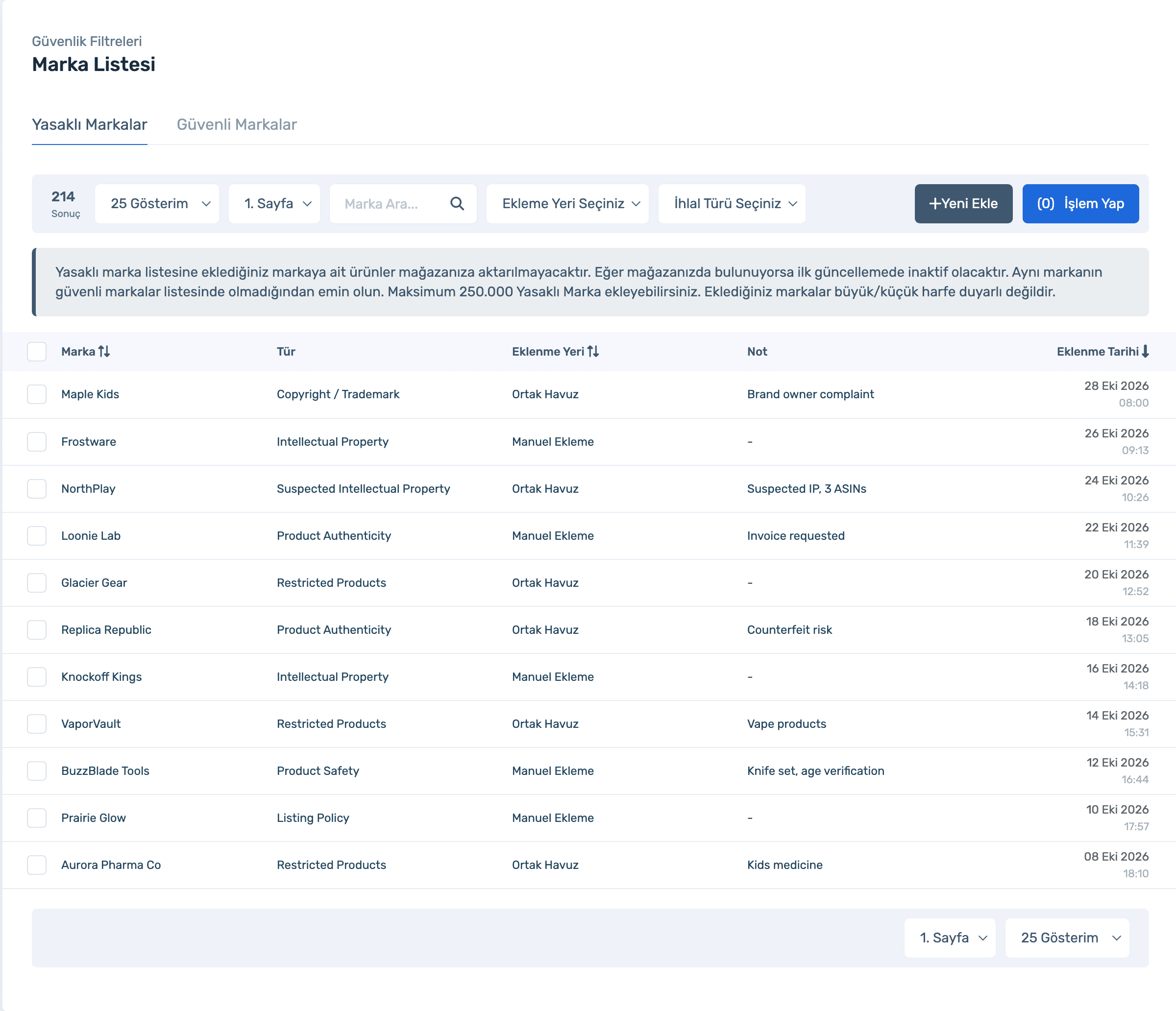
Products of listed brands are not imported; existing ones go inactive at the next update. Not case-sensitive.
Even with the banned brand, Trademark, Seller-Branded and Same Seller filters on, these brands’ products upload without those checks and keep updating.
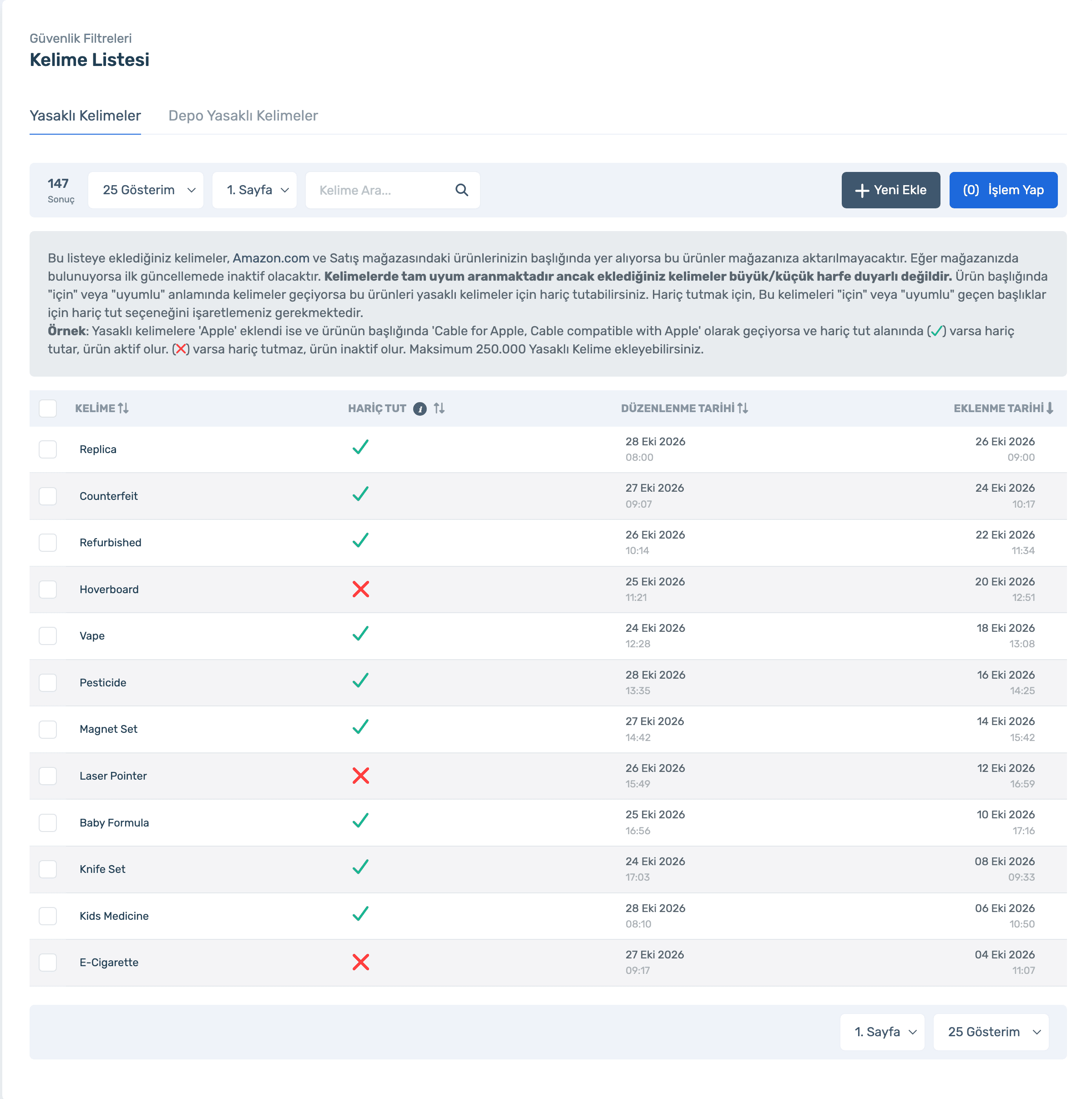
If a banned word appears in the product title on Amazon.com or your sales store, the product is not imported; if already listed it goes inactive at the next update. Whole-word match, not case-sensitive.
Add categories that need approval or care (health, grocery, baby) as main categories, and narrower ones (vitamins, hair dryers, baby formula) as subcategories. Products in listed categories are not imported.
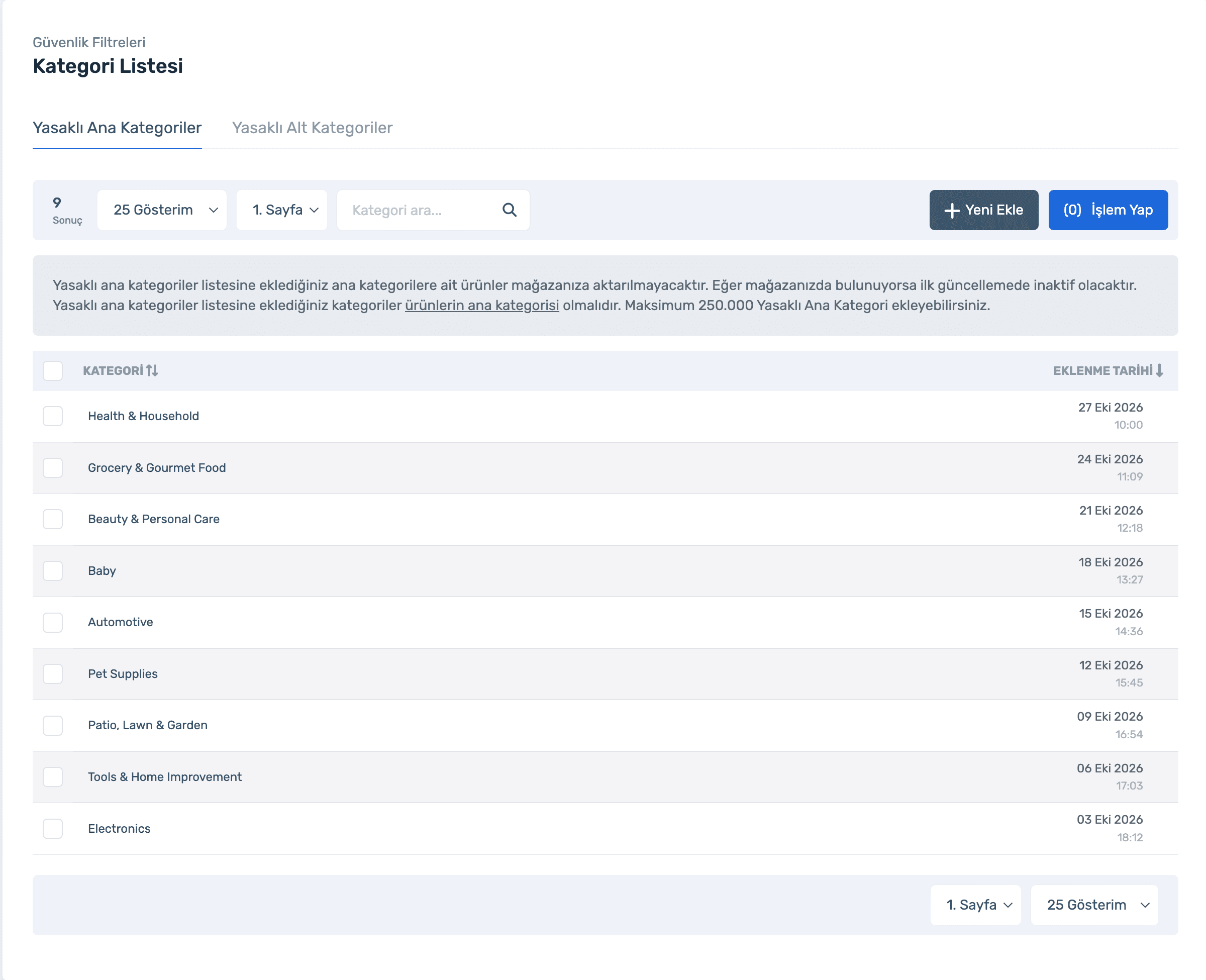
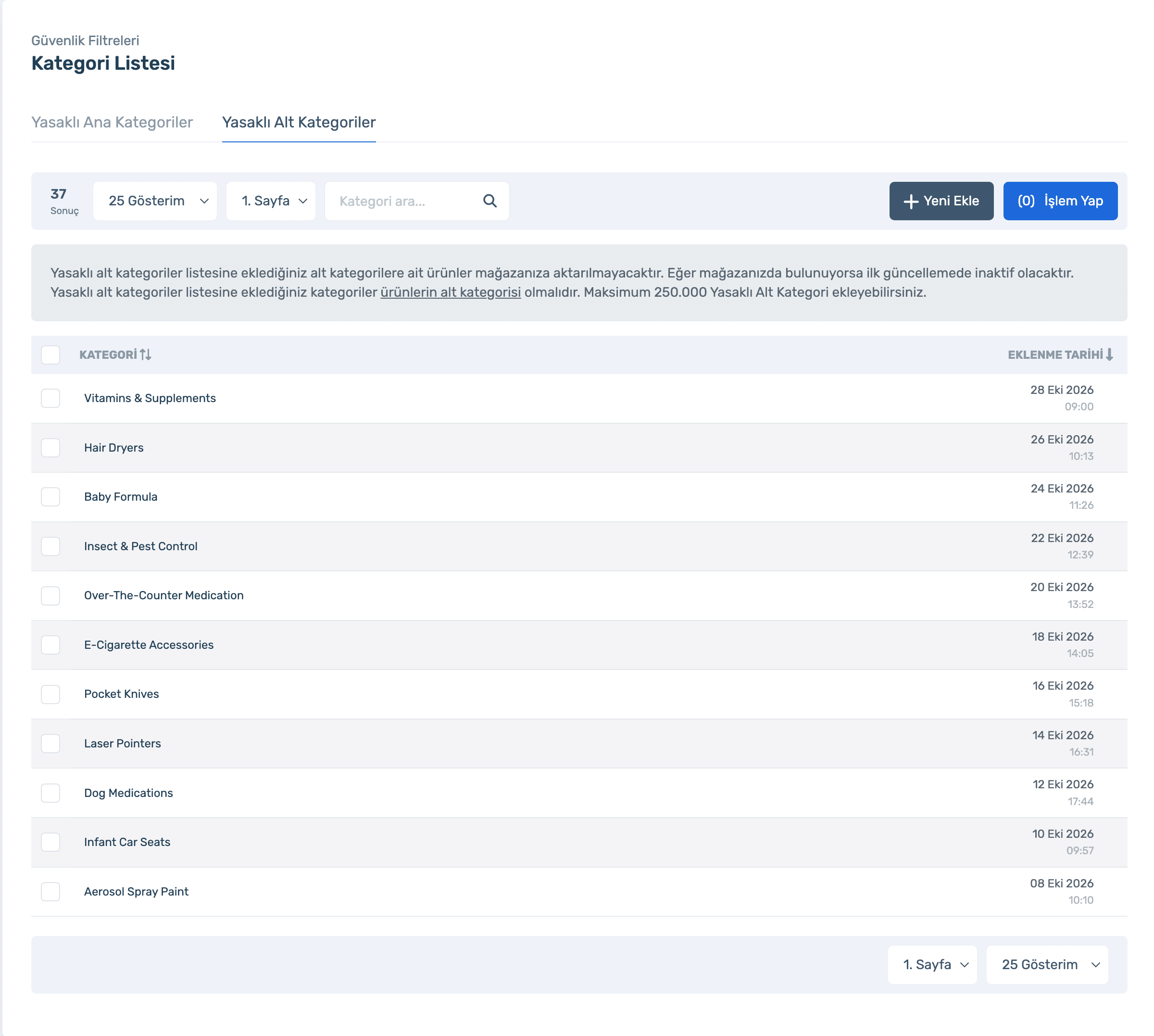
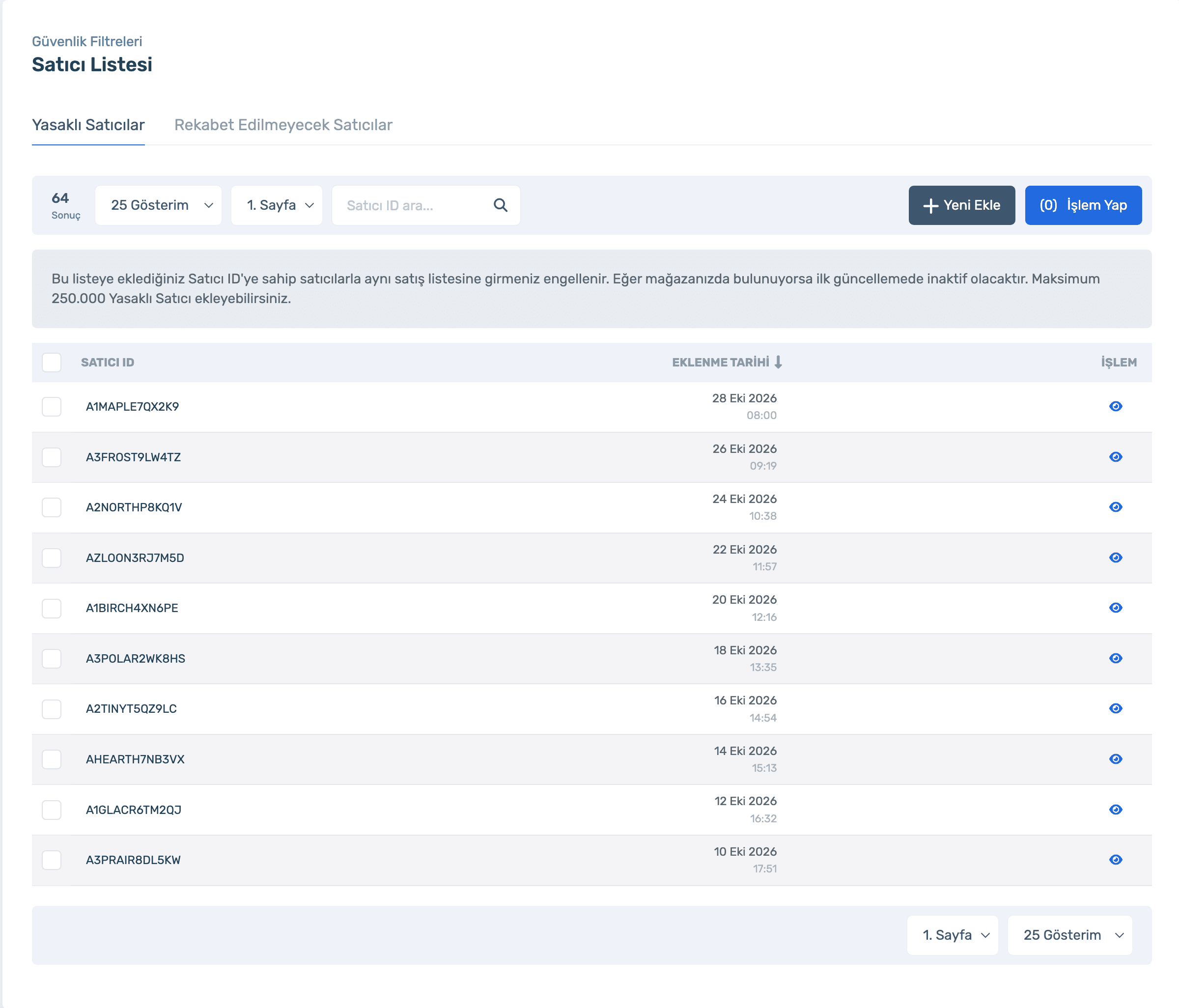
Add Seller IDs to Banned Sellers; you won’t join listings with that seller, and existing ones go inactive at the next update. Do-Not-Compete Sellers are ignored by Easy Pricer’s price calculation.
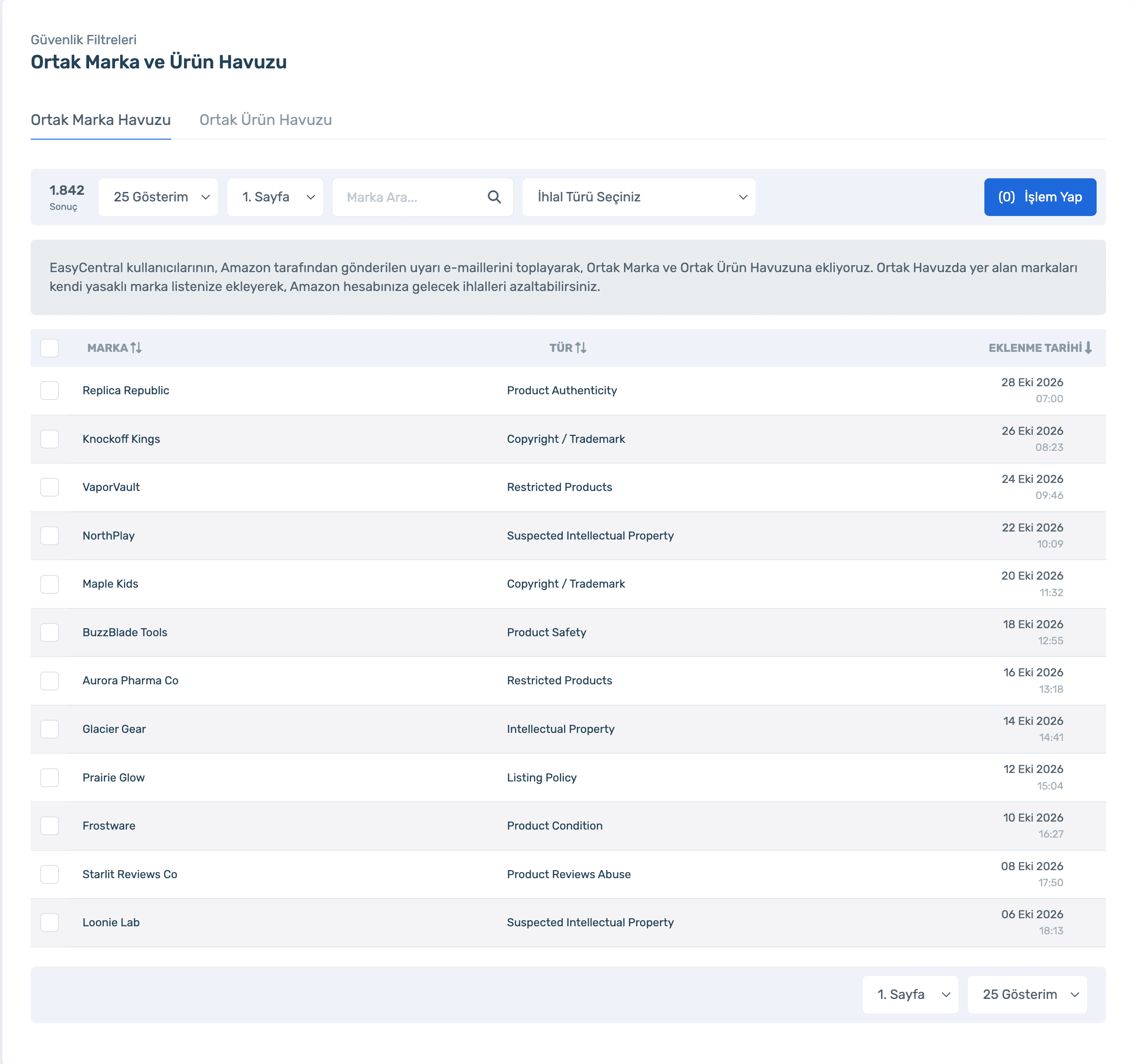
Warning emails EasyCentral users receive from Amazon are collected; the brands and products involved build up in the Shared Brand and Product Pools. Add them to your own banned lists and act before a warning reaches you.
Sign up, connect your store and turn on the filters. Already a member? Log in and open Inventory › Update Settings.
Trademark, banned product, brand, keyword, category and seller lists, Shared Pool and auto removal.
50% off your first month, code: MERHABA
Used EasyCentral before? 30% off to welcome you back: GERIDON