
Can I list this product in my store?
With Restriction Check on, each product is checked against your store through Amazon; the result is shown next to it.
Products that pass the scan wait in the pool. Restriction Check verifies each one against your store through Amazon, and automatic upload sends the products you choose at the interval you set.
No Approval Needed, Approval Needed and Cannot Be Approved are counted separately; you decide which ones upload automatically.
50% off your first month, code: MERHABA
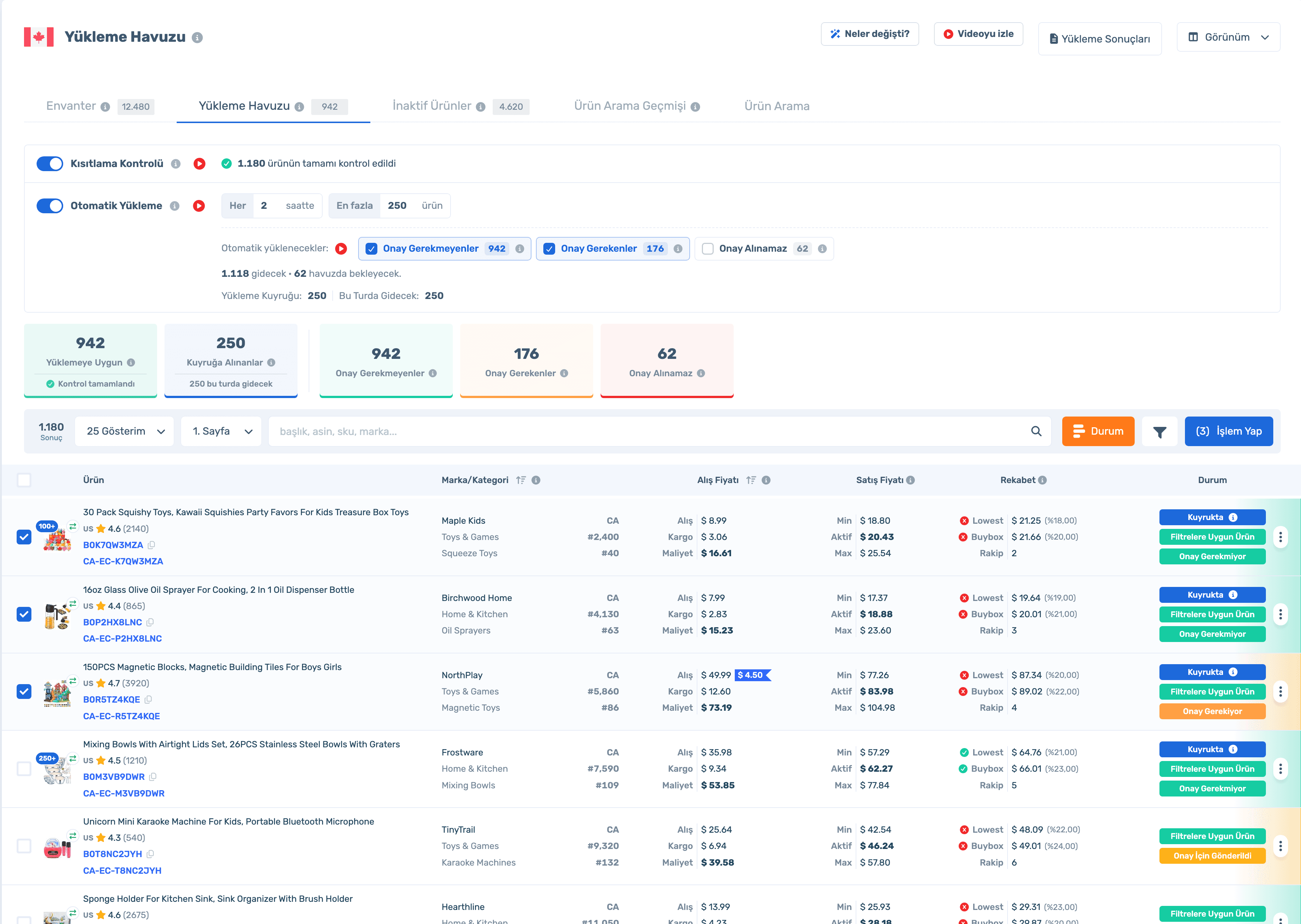
Data in the screens is sample store data.
Can I list this product in my store?
With Restriction Check on, each product is checked against your store through Amazon; the result is shown next to it.
Should I upload a product that needs approval?
Approval Needed items can be listed with an invoice or survey, so prepare first. Don’t upload Cannot Be Approved items; your account isn’t eligible.
When and how many get uploaded?
You set your own interval and amount, such as "up to 250 products every 2 hours". The next round’s time is on screen.
How do I weed out unwanted products?
Select them and remove from the pool, or add them to your banned products and brands so they don’t come back in scans.
Sign up, connect your store and run your first scan; suitable products wait in the pool. Already a member? Log in and open Inventory Management › Upload Pool.
Turn on Restriction Check to verify pool products for your store. Turn on Automatic Upload, pick which approval statuses go, and products upload at the interval you set.


You can upload them right away.
Approval Needed items can be listed with an invoice or survey. Don’t upload Cannot Be Approved items; your account isn’t eligible for them.
Each row shows purchase and shipping cost, your min/active/max price, Lowest and BuyBox prices, competitor count and approval status together.
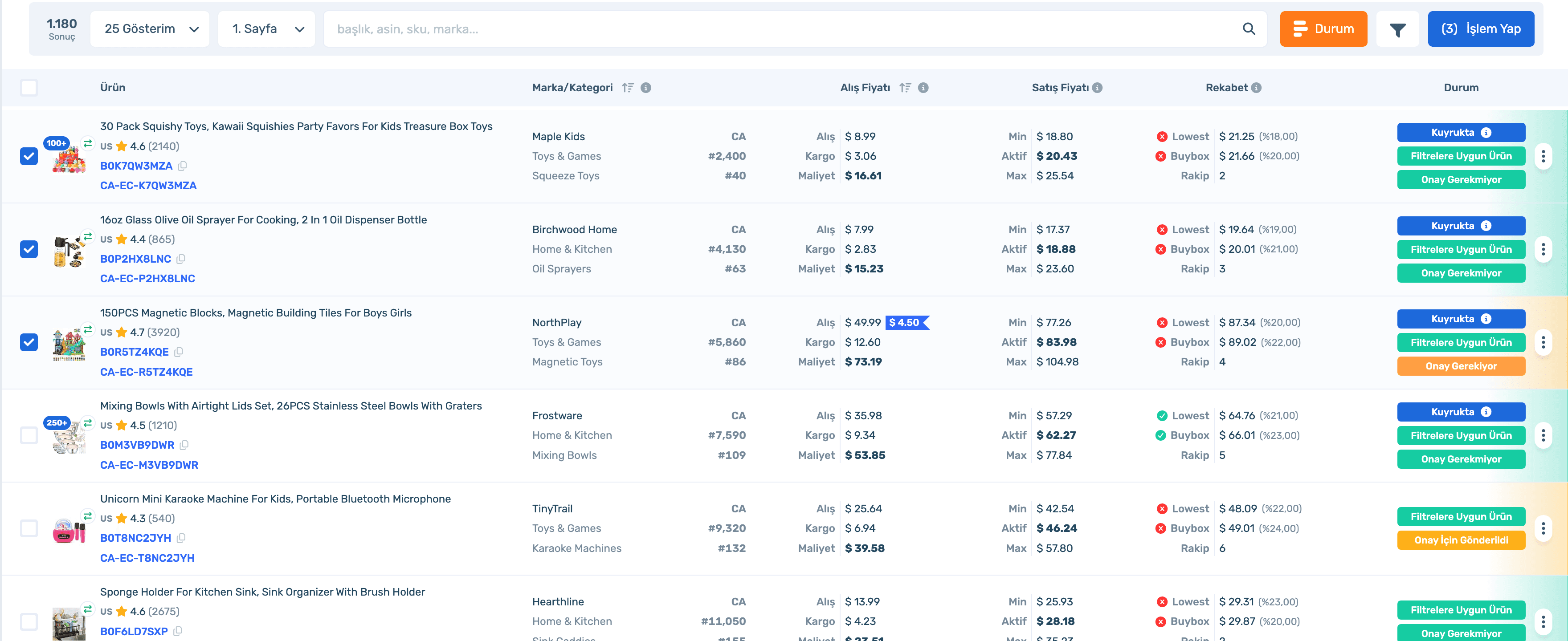
Sign up, connect your store and run your first scan; suitable products wait in the pool. Already a member? Log in and open Inventory Management › Upload Pool.
Up to 50,000 ASINs per scan; matches land in the pool.
Restriction Check, approval status and automatic upload.
Uploaded products move to inventory; price and stock update automatically.
Restriction Check, approval statuses and automatic upload on one screen.
50% off your first month, code: MERHABA
Used EasyCentral before? 30% off to welcome you back: GERIDON